Creating Interactive Museum Scenes from Text
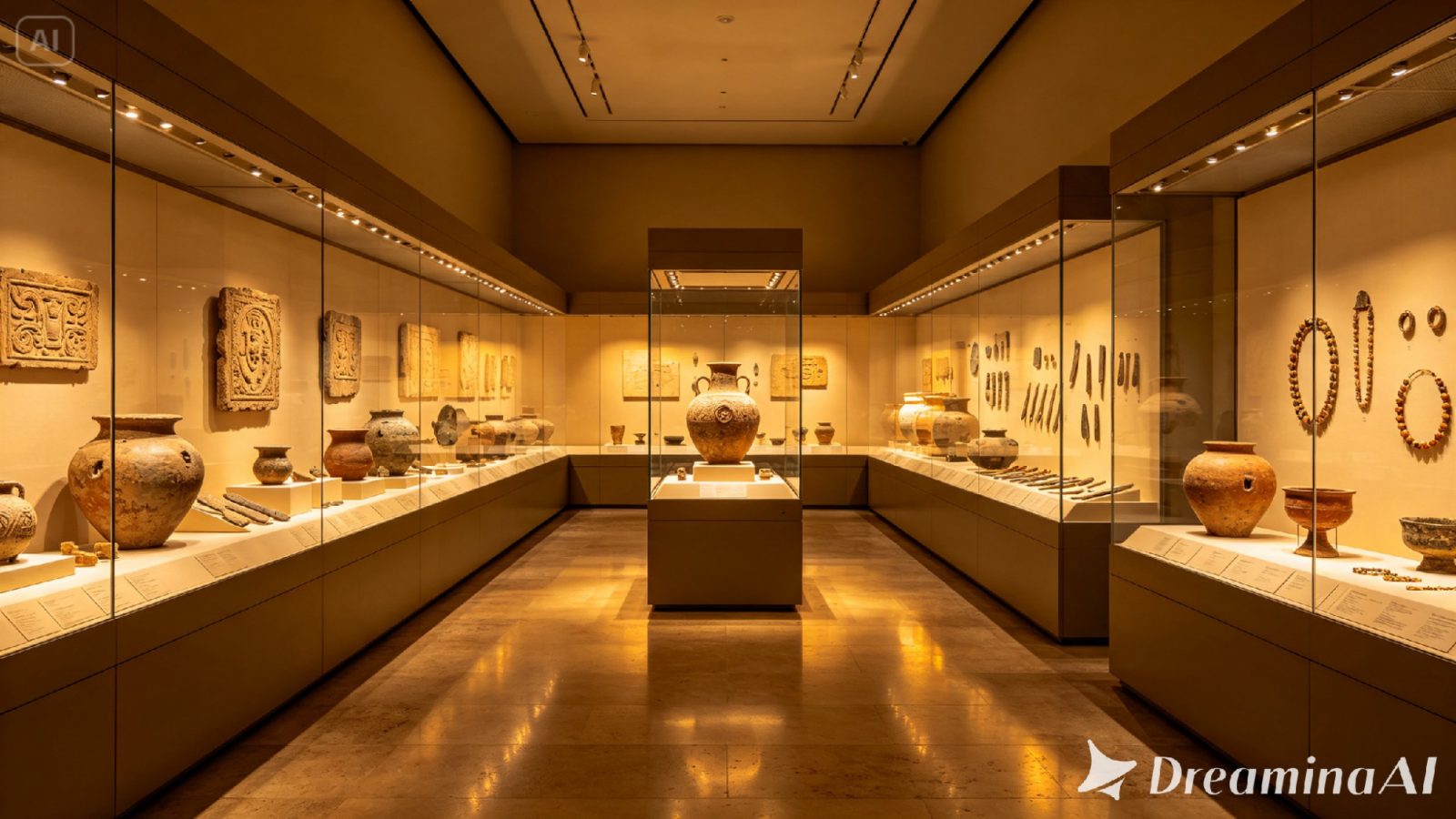
Museum design used to mean months of physical mockups before anyone could tell if an exhibit actually worked. Now a written concept can become a full render before a single wall gets built. Text to video tools have gotten precise enough for this kind of work, and Dreamina’s Seedance 2.5 can turn a description of an exhibit space into something that looks close to a real walkthrough render.
Why exhibit concepts translate so well into renders
A museum exhibit already exists as a plan before it’s built, lighting choices, display placement, the path a visitor is meant to walk. Writing that plan out as a prompt isn’t a huge leap, it’s mostly translating a floor plan into a scene. Seedance 2.5 fills in the visual detail a curator or designer has usually already worked out in their head.
Choosing the exhibit moment worth rendering
A full museum floor is too much for one image, so pick a single vantage point that captures the feel of the whole space. A few angles tend to render particularly well:
- The entrance to an exhibit, where the first impression happens
- A single display case with the lighting doing most of the work
- An interactive station shown mid-use, with a visitor engaging it
One strong render of a single moment says more than a wide shot trying to capture everything at once. A cluttered wide view often ends up telling stakeholders less about the actual experience than one carefully chosen angle would.
What makes an exhibit prompt feel real
A vague prompt just says “museum room.” A strong one names the material of the walls, the color and direction of the lighting, and what a visitor would actually be looking at. Polished concrete reads differently than warm wood paneling, and a spotlight aimed low across an artifact reads differently than even, flat lighting. These details are what separate a genuine clip concept render from a generic stock video.
Your three-step path from concept to finished render
Step 1: Enter your prompt and add a reference if you have one
Head to Dreamina’s AI Video section. Got a photo close to the scene you’re picturing? Upload it through “Add reference image” and build from there. If you’re working purely from text to video, skip that and describe the moment in detail instead.
Here’s an idea for a render: A dimly lit gallery room with a single glowing display case at its centre, an ancient pottery piece lit from below, visitors’ silhouettes faintly visible in the background walking around the room looking at the artifacts, warm amber spotlighting against dark charcoal walls, a hushed and focused mood.
Step 2: Choose Seedance 2.5 and generate
Select Seedance 2.5 once the prompt’s ready, it handles small, human expressions and quiet pacing particularly well. Pick a length that fits the moment, then an aspect ratio: 9:16 for social platforms, 16:9 for anything closer to a short film. Generate, give it a few seconds.
Step 3: Refine the layout and export
Watch it once before deciding it’s finished. Upscale sharpens detail in facial expression and small gestures. Generate soundtrack adds a subtle score if the moment calls for one. Export once the pacing feels right, share it wherever it’s headed.
Meet Seedance 2.5 , the model built for layered spaces
A lot of Seedance 2.5 updates are about what creators don’t have to fix afterwards.
No more stray subtitles or random music
The generation has stabilised to such an extent that it is capable of addressing the issue of random subtitles and background music popping up without reason.
Less “AI look,” more physical texture
There is improved realism in texture and weight, increased consistency in cuts and a better ability to perform complicated long-tail actions which were not possible before.
Sound and camera control after the fact
It is now possible to extract background music from films while retaining character voices and on-screen visuals, and it is also possible to change the camera viewpoint after the event, even deducing details about the spatial arrangement not discernible in the original scene.
Bringing interactivity into a static render
Interactive exhibits need to show engagement, not just design. Including a visitor mid-interaction, hand extended toward a screen or display, does more to sell the concept than an empty room ever could. Seedance 2.5 renders that kind of human presence convincingly enough to make the interactive element feel like part of a real, functioning space.
Where these museum concept renders are already being used
These renders have become a regular step in exhibit planning well before construction starts. Museum design teams use them to pitch a concept to stakeholders before committing to materials, grant applications often need a visual to accompany a proposal, and traveling exhibits use early renders to plan how a space will need to adapt across different venues. A concept that used to live only in a designer’s notes can now be seen clearly, and thanks to Seedance 2.5 , it looks close enough to finished to make the case on its own.
Planning a museum exhibit used to mean physical mockups and a long wait before anyone could see the vision clearly. With Dreamina and the layered precision of Seedance 2.5 , that same concept can go from a written plan to a convincing render before the first wall panel is ever ordered. That speed changes how many ideas a design team can actually explore before committing to one.